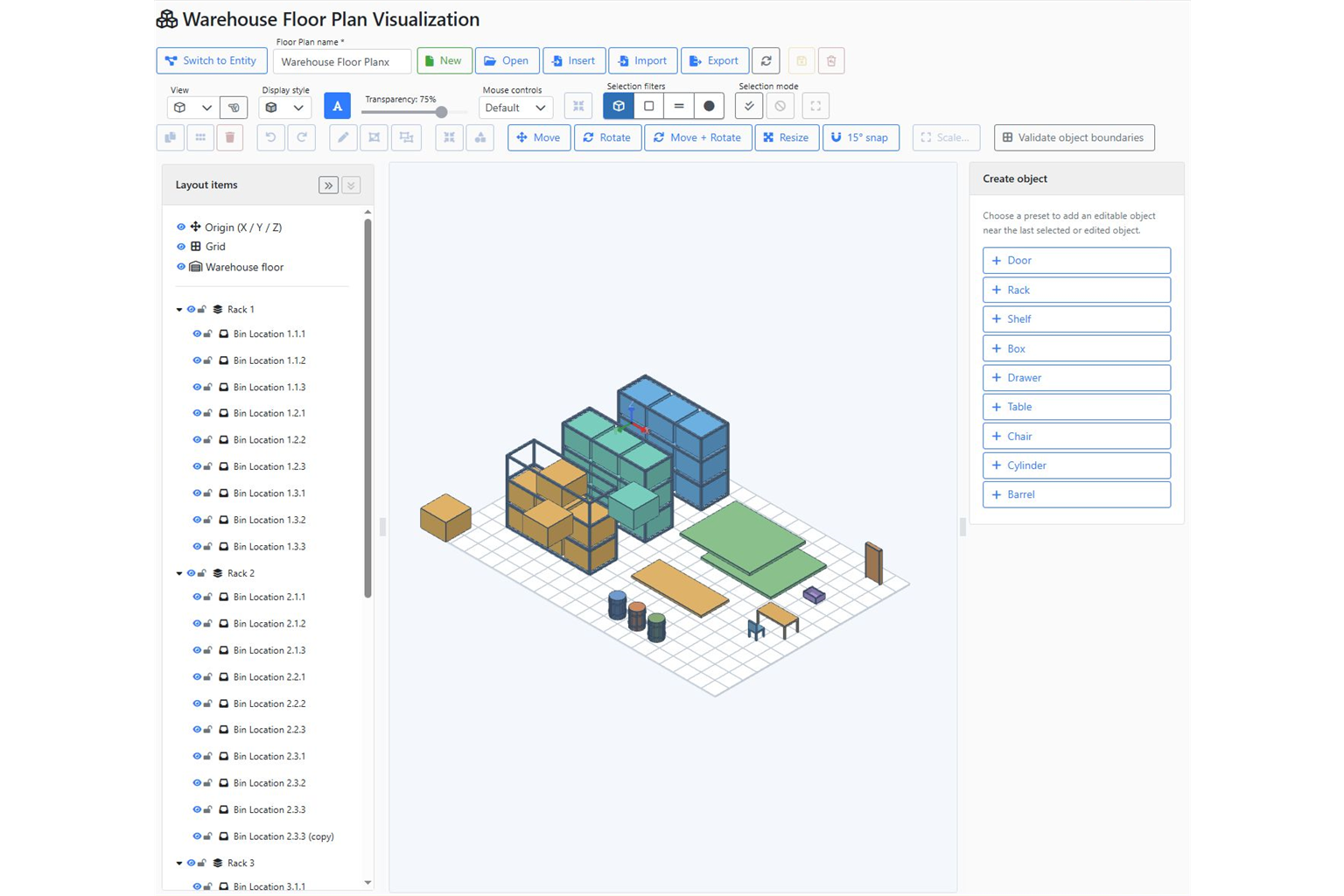
A shelf code is useful. Seeing where the shelf is can make it clearer. ERP Core links storage locations to a visual warehouse plan, helping the team move from stock information to the associated position in a 3D view.
 Example: a new colleague needs to find a part
In a warehouse with several rows of shelving, a colleague is told “B-03, level 2”. The code is correct, but it does not immediately explain which part of the building to visit. A configured 3D plan provides visual context for the location. This is an illustrative example: actual names and structures are configured for each warehouse.
How to prepare the 3D warehouse
- Build or import the plan. The Floor Plan editor provides tools for objects, positioning and model imports.
- Organise the elements. Represent zones and shelves in a way the team can recognise.
- Link ERP locations. A drawn object must be associated with the corresponding storage location to have operational meaning.
- Check the links. Compare the plan with physical labels and warehouse organisation before using it.
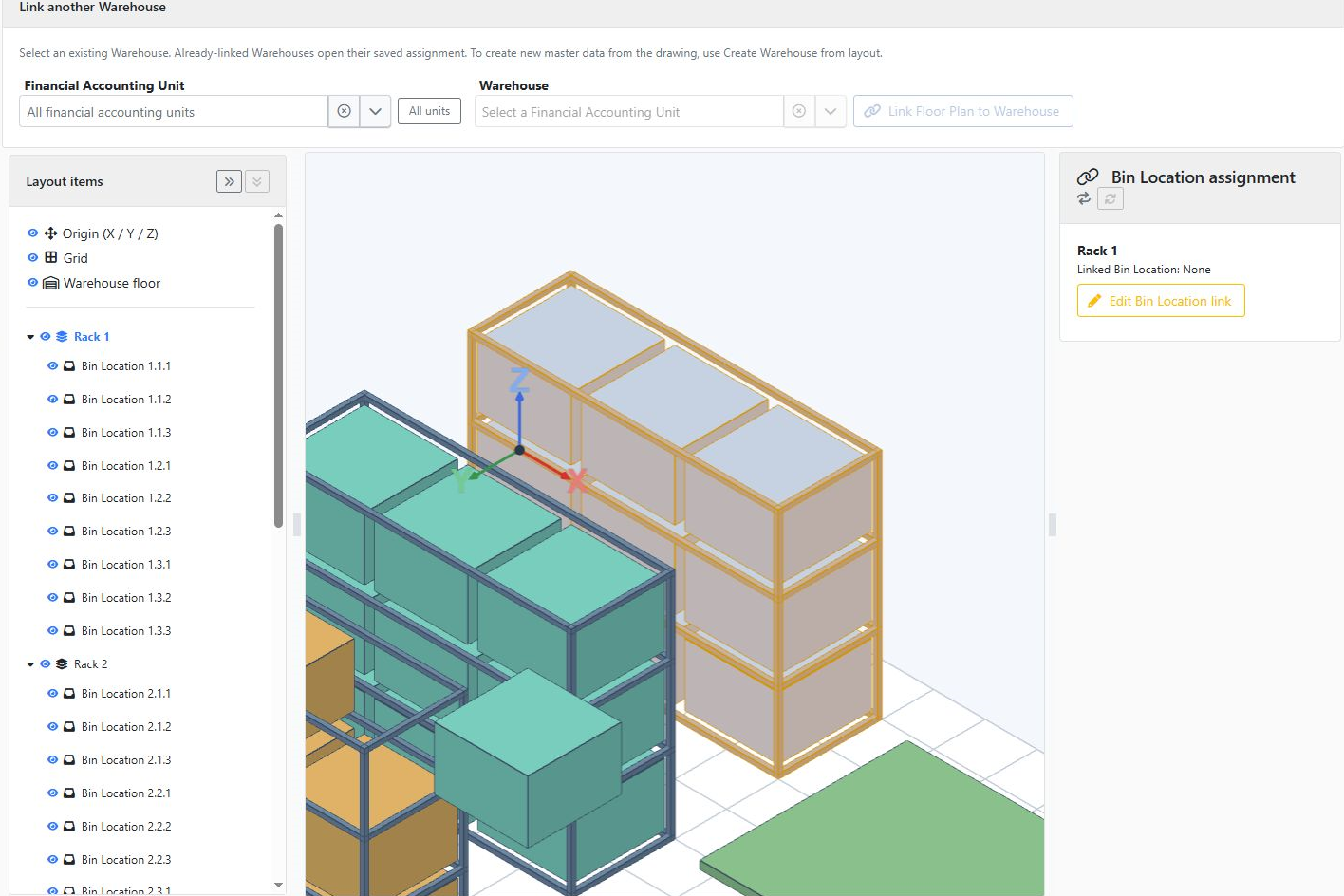
Check the selected object and its assignment
Select a rack in the tree or drawing. In Bin Location assignment, check the linked location. The example below shows “None”: the object has been drawn but has no operational assignment yet. Complete and verify the link before using the plan to locate stock.
How to find a product’s location
Start with the product and its stock details, select the relevant location and use Locate in 3D when a plan is linked to that location. Product lookup and warehouse orientation become two stages of the same workflow. If a plan has not been configured, the location list remains essential.
Where does this help?
- Distribution: finding your way among shelves with similar products.
- Manufacturing: identifying the location of a component needed for an order.
- Staff training: explaining storage areas before operational work begins.
- Reorganisation: discussing the layout and updating links between the plan and locations.
The plan must keep up with the warehouse
The view shows locations configured in the system; it does not automatically detect physical movements of goods. Stock movements and location links must be maintained correctly. A clear plan and disciplined data entry work together.
See how to check inventory before locating it in 3D.
Request a 3D warehouse demonstration and discuss an example using the zones and shelves relevant to your business.